No corner crop required
Removing the selected stamp preserves the original framing instead of cutting away part of the photo.
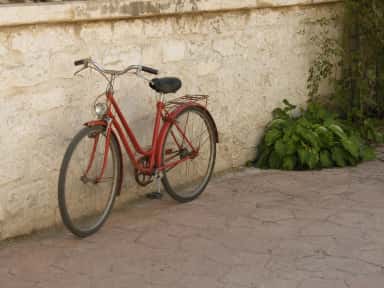

Remove a date stamp from a photo by selecting the printed date or time while leaving the rest of the picture untouched.
Real workflow result
The orange camera date was selected closely so the workflow could rebuild the pavement without cropping the photo.
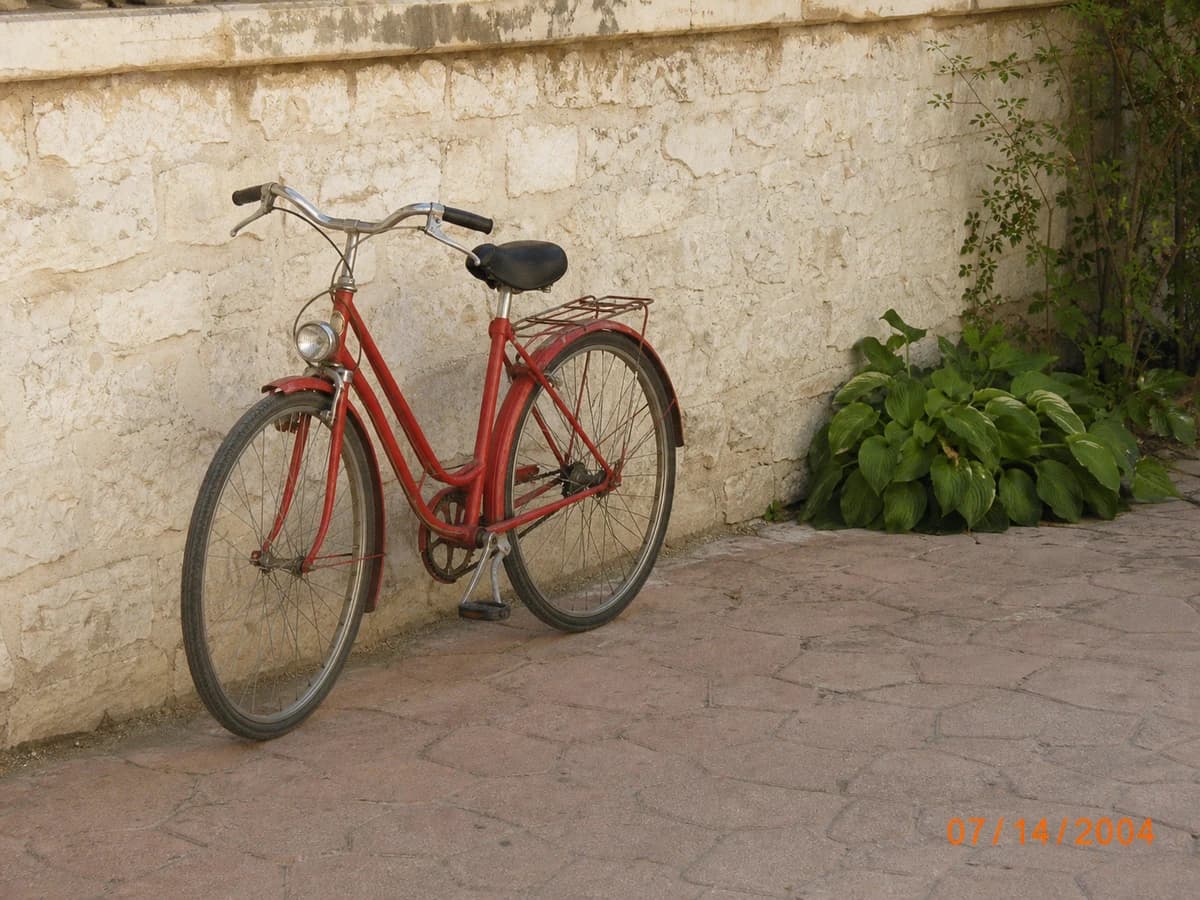
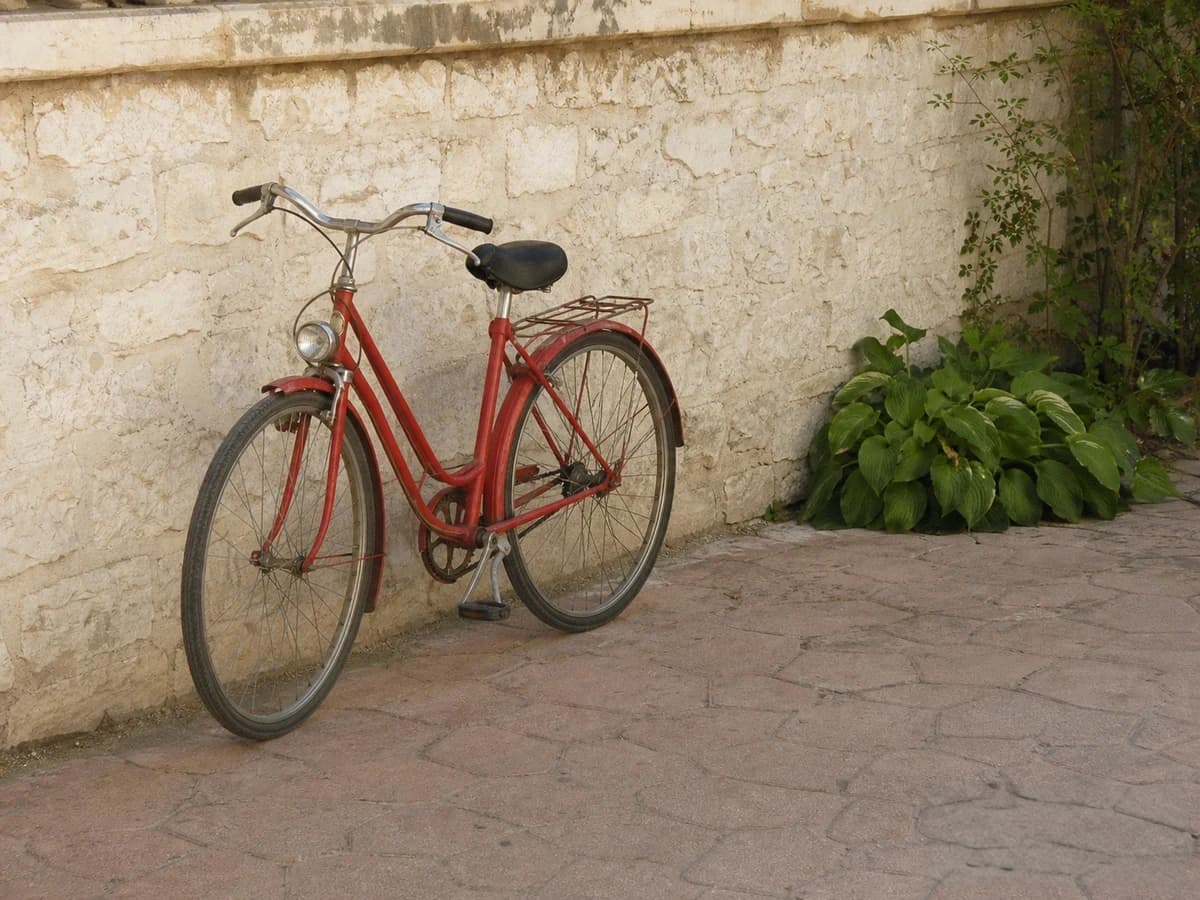
Date stamps often sit in a corner with enough visible sky, wall, floor, or fabric nearby for reconstruction. Mark the digits closely and include their glow, outline, or shadow. Open the general text remover for a broader editing task.
Practical workflow
Use the highest-quality JPG, PNG, JPEG, or WebP version available.
Brush over every digit plus any outline, glow, or time label attached to it.
Review the filled texture at full size and make a smaller second pass if an edge remains.
What to expect
Removing the selected stamp preserves the original framing instead of cutting away part of the photo.
Select the entire printed block when the camera added both a date and a time.
A stamp crossing a face, hand, or object outline needs a tighter mask and closer result review.
Remove a camera date from a digitized personal photo while preserving its framing.
Clear an old timestamp before printing or placing the photo in a new layout.
Remove an incorrect embedded date when the correct information is stored elsewhere.
A date stamp covering an important face or object cannot reveal the exact original detail; the selected area is reconstructed from context.
Yes. Mark the complete date-and-time block, including any outline or shadow around the digits.
No. This page edits visible pixels in the image. It does not change EXIF metadata or the date stored by your photo library.
Yes. Upload the image through your mobile browser. The workflow edits the visible timestamp regardless of which camera created it.